
ThunderTix will automatically import into your Mailchimp account, all email addresses as your customers purchase tickets. In addition, ThunderTix can do a bulk import of all of your email addresses right from our Customer Relationship Manager. What’s more is that we’ll automatically update name information, addresses and company name if they already exist in Mailchimp. To take advantage of the Mailchimp integration, take the following steps:
- To get started, you’ll first need to create a Mailchimp account.
- Next, you’ll connect your Mailchimp account to ThunderTix. Head to Account Settings > Integrations and Pixel Tracking. We use OAuth , so all you need to do is click “Log in to Mailchimp” and approve the connection.
- Once connected, your existing Mailchimp lists will automatically be available in ThunderTix. From there, edit any existing event or create a new one. Under Mailchimp Integration, select up to four of your email lists. That’s it! When a customer signs up or updates their information, their email address will automatically sync with your selected Mailchimp lists.
- There are times you may want to target customers that haven’t yet purchased tickets to a new event. Use our powerful CRM search tools to find your target audience, then click on the Mailchimp Export icon and follow the steps for a bulk export of customer data.
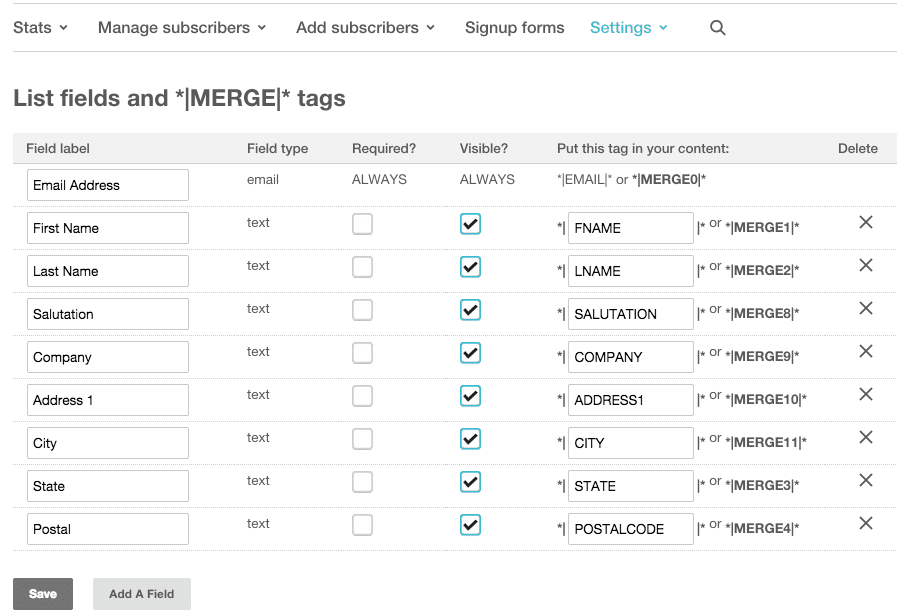
- But wait, there’s more! Some of our venues like to add regular postal addresses to their Mailchimp databases. To do that, you’ll want to go to the Settings tab of your Mailchimp account, and click on the Merge Vars link from the drop down. View the Mailchimp screenshot below and follow the template to capture all of your customer information in Mailchimp.
That’s it! Please give us your feedback so we can continue to provide you with better software that sells more tickets!